
Upgrade-safe crypto payments for Zen Cart
Zen Cart store owners have learned to be careful with add-ons. A module that overwrites core files turns every upgrade into a merge job. The Payfim module only adds files: a payment class in includes/modules/payment/, its language file, an auto-loaded observer and a small payfim_webhook.php in the store root. Nothing that ships with Zen Cart is replaced.
The same package covers Zen Cart 1.5.8 and the 2.x series. It includes both the newer array-style language file and the legacy define-style one, guarded so they can coexist, which keeps the upgrade from 1.5.8 to 2.x simple.
Behind the module is your own self-hosted Payfim Gateway. It creates invoices, watches the blockchain and tells Zen Cart when a payment is final. The coins go directly to the addresses you entered; Payfim never holds them, never asks for private keys and charges no transaction fees.
The order lifecycle, step by step
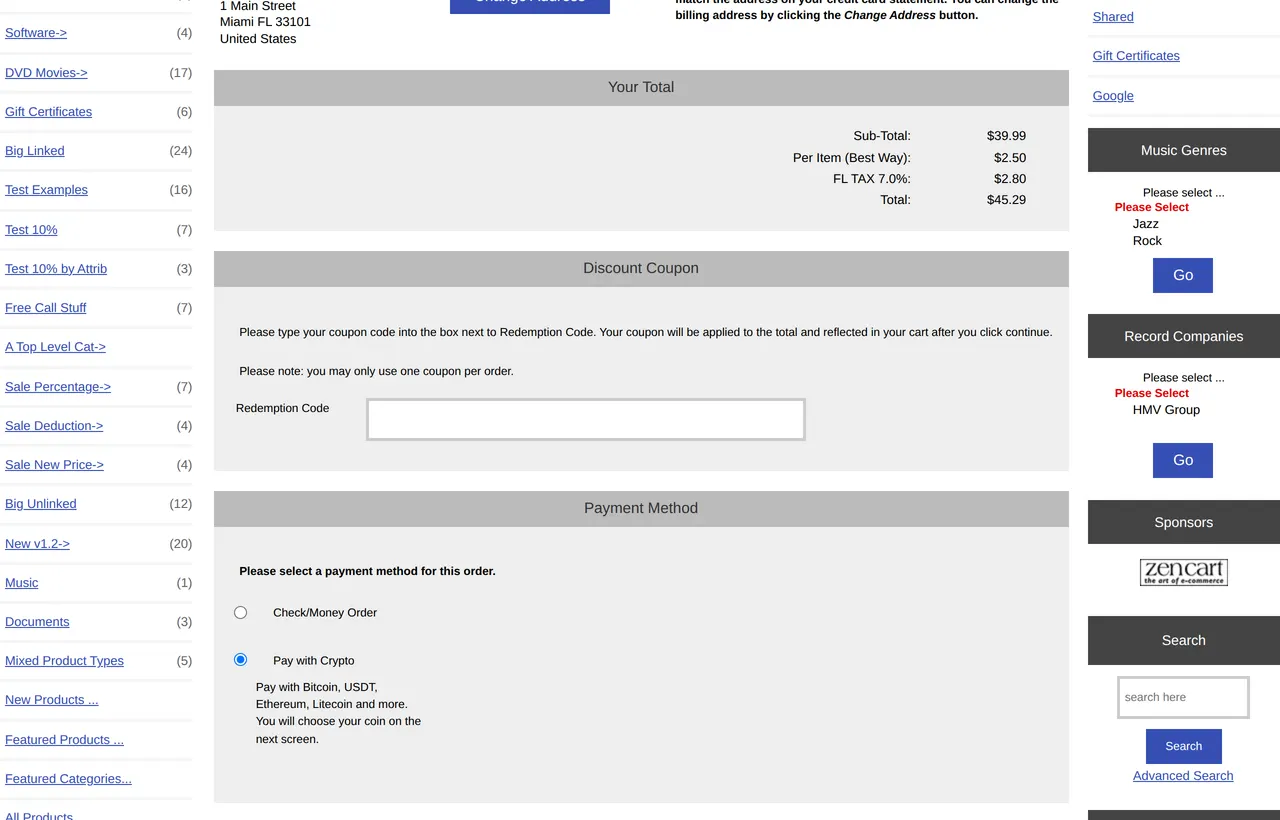
- At checkout confirmation the module first checks that your gateway is reachable. If it is not, the customer goes back to the payment page with a short message and no order is created - so you never collect orphaned orders that could not be paid.
- Zen Cart creates the order with your pending status and sends its order e-mail as usual. The module then creates the invoice for the order total in the order currency and records a hidden comment with the invoice number.
- After Zen Cart finishes checkout processing, the observer redirects the customer to your crypto checkout to choose a coin and pay.
- When the transaction reaches your required confirmations, the gateway calls
payfim_webhook.php. The module verifies the signature, re-fetches the invoice, checks order, amount and currency, and updates the order to Processing with a customer-visible history entry: coin, amount and transaction hash. - The customer comes back to checkout_success and sees a confirmation message once the payment is in.
Order statuses, including "Crypto underpaid"
On install, the module creates a dedicated Crypto underpaid order status in every language of your store. Short payments get that status and a comment such as Only 0.0141 of 0.0177 BTC received, so they are easy to spot in Customers → Orders and are never mistaken for paid orders.
| Event | Default result |
|---|---|
| Order placed | Pending |
| Payment confirmed | Processing, customer notified |
| Payment short | Crypto underpaid, with a comment |
| Quote expired unpaid | Comment only; optionally an Expired order status of your choice |
All four statuses can be changed in the module settings. What to do with an underpaid order is a business decision; our underpayment guide walks through the options.
Where to find the payment details
Zen Cart orders have no transaction-ID column, so the module keeps the details in three places: the order status history, its own payfim_invoices table, and a Payfim panel on the admin order page. Open an order and click Click for Additional Payment Handling Options to see the invoice, its status, the amount received and the transaction hash.
Removing the module deletes only its configuration. Orders, the Crypto underpaid status and the invoice table are kept, and they are re-used if you install it again.
On the gateway side, each invoice has its own page showing the requested and received amounts, the confirmations and every webhook delivery to your store. That view is the quickest way to answer a customer who asks whether their payment arrived.
Security in plain terms
Every webhook must carry a valid HMAC-SHA256 signature made with your API key and a timestamp no older than five minutes; anything else is rejected with HTTP 401, and plain GET requests to the webhook get 405. A valid message is still double-checked with the gateway before the order changes. Duplicate deliveries are applied once, using a compare-and-set claim that works on every database version Zen Cart supports.
The API key is entered through Zen Cart's password input and shown masked in the admin afterwards. The Test connection button requires the admin security token. For the full picture, see our security page.
How your gateway tells payments apart
Zen Cart only learns about a payment when your gateway says so, so it helps to know how the gateway decides. Each open invoice gets a unique crypto amount by adding a tiny fraction (by default at most about five cents), which lets it match a transaction to the right order even when several customers pay the same address. XRP invoices get their own destination tag and Monero, in wallet-RPC mode, a fresh subaddress.
A blockchain transaction can only ever pay one invoice. The exchange rate is locked for 30 minutes by default, using CoinGecko with Coinbase and Binance as fallbacks, and a payment that arrives after the quote expired is still detected so you can deal with it. The gateway waits for the confirmations you set per coin before it notifies Zen Cart. Run its cron job every minute so these checks happen promptly; the cron setup page shows how.
Requirements
| Zen Cart | 1.5.8 - 2.x (tested end to end on Zen Cart 2.2.2) |
|---|---|
| PHP | 7.4 - 8.4 (within the range your Zen Cart version supports) |
| Core changes | None - new files only |
| Webhook endpoint | payfim_webhook.php in the store root, reachable over HTTPS |
| Gateway | Payfim Gateway 3.0+ (included in your download) |
The gateway itself runs on ordinary cPanel shared hosting with PHP 7.4 to 8.4, MySQL or MariaDB, cURL and HTTPS, so it can sit on a subdomain of the same account as your store. Its license check is signed with Ed25519 and has a 72-hour grace period, which means an outage at payfim.com never stops your customers from paying.
How to install the Zen Cart crypto payment module
- Set up the Payfim Gateway. Install the gateway on your hosting and add a wallet address for each coin you want. See Install the Payfim gateway.
- Upload the files. Unzip
payfim-zencart.zipand upload the contents ofpayfim-zencart/to the folder that holds Zen Cart'sindex.php. Only new files are added. - Install the module. In the admin open Modules → Payment, select Payfim Crypto Payments and click Install Module.
- Enter your details. Fill in the Gateway URL and the API key from the gateway's Integrations page, review the preset statuses and click Update.
- Test the connection. With the module selected in Modules → Payment, click Test connection; a green message lists your coins. Then place a small order. See the Zen Cart setup guide.
Screenshots