Crypto checkout for small CubeCart stores
CubeCart is popular with owner-run shops that want a straightforward cart without a large plugin ecosystem to manage. The Payfim gateway keeps to that spirit. It is a regular CubeCart 6 gateway module in modules/gateway/Payfim/: no core file is edited, nothing is overwritten, and it shows up in Extensions → Manage Extensions under Payment like the gateways that ship with CubeCart.
What it adds is a way to get paid in crypto without a middleman:
- Your wallets, your money. The customer pays to an address you set up in your own Payfim Gateway. Nothing sits in a third-party balance waiting for a payout.
- No percentage per sale. Payfim does not charge transaction fees; the customer covers the ordinary network fee.
- No merchant approval. There is no application form and no account that can be suspended.
It suits shops whose customers already hold crypto, and shops that simply want a second way to get paid when card processing is limited for their niche.
Your gateway also keeps its own record of every invoice, with a timeline, the transaction hash and each webhook it sent to CubeCart. When a customer asks where their payment is, you can answer in a minute without leaving your own servers.
How orders and payments are recorded in CubeCart
CubeCart creates the order first, then the gateway builds the Payfim invoice on the server from the order summary total. The customer is passed to your crypto checkout through the module's own endpoint, so no CubeCart form fields or tokens are ever sent to the gateway.
When the payment has the confirmations you chose, your gateway sends a signed webhook and the module:
- checks the signature and timestamp, then fetches the invoice from the gateway to confirm the order ID, amount and currency;
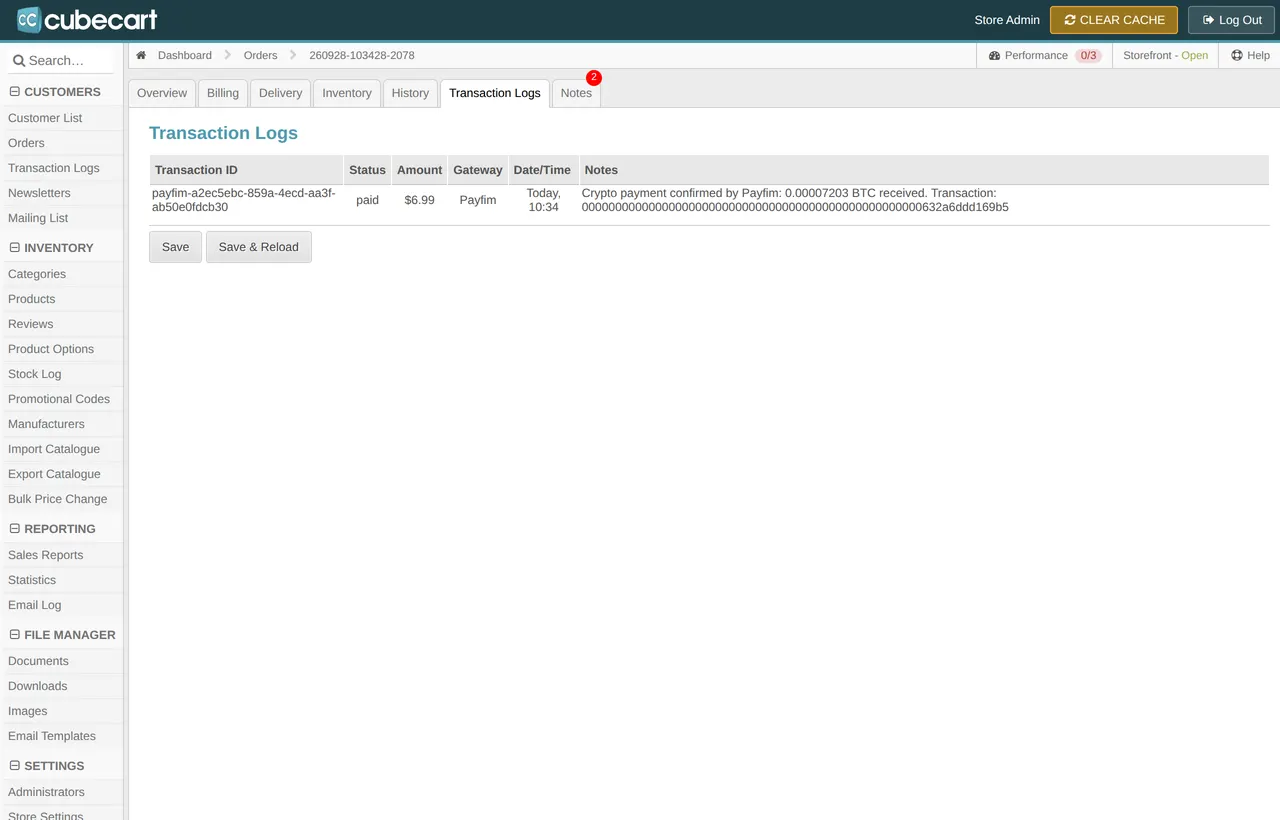
- writes a row to CubeCart's transaction log with status paid, the amount and the blockchain transaction hash in the notes;
- adds a private order note with the Payfim invoice;
- sets the payment to successful and the order to Processing. CubeCart then sends its usual e-mails and, for orders that contain only digital products, completes the order itself.
A named database lock per order and a check for an existing paid transaction make repeated webhooks harmless: the second one is acknowledged and ignored.
Underpaid, expired and unreachable
Real-world crypto payments do not always go to plan, so the module handles the three common exceptions explicitly:
- Underpaid: CubeCart has no "on hold" status, so the order stays Pending. The transaction log and a note show exactly what arrived, for example Only 0.0172 of 0.0215 BTC received. The order is never marked paid automatically.
- Expired quote: if the customer never pays, the order is cancelled - but only while it is still Pending and only if the expired invoice is the newest one for that order.
- Gateway unreachable: the customer sees "Crypto payment is temporarily unavailable" together with CubeCart's Make Payment button to retry, instead of a blank page.
For a customer-friendly way to settle short payments, read handling crypto underpayments and refunds.
One setting to check: your default currency
CubeCart stores order totals in the store's default currency, and the module charges in that currency. In Settings → Currencies, your default currency must have the value 1.0. If a failed exchange-rate update left it at another value, the crypto amount will not match the price your customer saw.
A note for bookkeeping: CubeCart's transaction ID field is limited to 50 characters, and Bitcoin or Ethereum transaction hashes are 64. The module therefore uses payfim-<invoice id> as the transaction ID and keeps the full hash in the transaction notes and order note.
Quick fixes for common questions
Most setup problems in CubeCart come down to four things:
- The option does not appear at checkout. Check that Status is ticked and that the zone tabs do not exclude the customer's country. When Payfim is your only gateway, CubeCart selects it automatically.
- "Crypto payment is temporarily unavailable". Your store could not reach the gateway. Click Save & test connection and confirm that your host allows outgoing HTTPS.
- The order stays Pending after payment. The gateway could not deliver its webhook to
index.php?_g=rm&type=gateway&cmd=call&module=Payfim; the exact URL is shown in the settings, and the invoice's webhook log in the gateway admin shows the response. - The checkout label. CubeCart offers a single label for each gateway, so put what customers should read - for example "Pay with Crypto (Bitcoin, USDT and more)" - in the Description field.
For step-by-step screenshots, the CubeCart guide covers installation from start to finish.
Requirements
| CubeCart | 6.x (tested end to end on CubeCart 6.8.1) |
|---|---|
| PHP | 7.4 - 8.4 |
| Install method | Upload one folder, enable in Manage Extensions |
| Store currency | Default currency set to value 1.0 |
| Gateway | Payfim Gateway 3.0+ on HTTPS (included in your download) |
| Hosting | MySQL/MariaDB and cURL; standard shared hosting works |
Choosing coins for a small shop
Start small. Two or three coins cover most customers: USDT on TRON for stable dollar value, Litecoin for low fees and quick blocks, and Bitcoin for customers who ask for it. You can add more of the 16 supported options at any time in the gateway, without touching CubeCart.
Most coins need no API key at all: Bitcoin, Litecoin, Dogecoin, Bitcoin Cash, Solana, XRP, Cardano, TRX and USDT on TRON work out of the box, although a free TronGrid key is recommended for TRON. Ethereum, the ERC20 tokens and HYPE need a free Etherscan key, BNB needs a paid Etherscan plan, and Monero needs a private view key or your own wallet RPC. If you would like to reward crypto buyers, a price adjustment such as -5% in the gateway gives them a discount without creating a coupon in CubeCart.
How to install the CubeCart crypto payment gateway
- Install the gateway app. Upload the Payfim Gateway to your hosting, complete the installer and add your receiving addresses. Follow Install the Payfim gateway.
- Upload the module. Unzip
payfim-cubecart.zipand upload itsmodulesfolder to the CubeCart root (next toindex.php). This addsmodules/gateway/Payfim/. - Open the settings. In the admin go to Extensions → Manage Extensions, find Payfim Crypto Payments under Payment and click its gear icon.
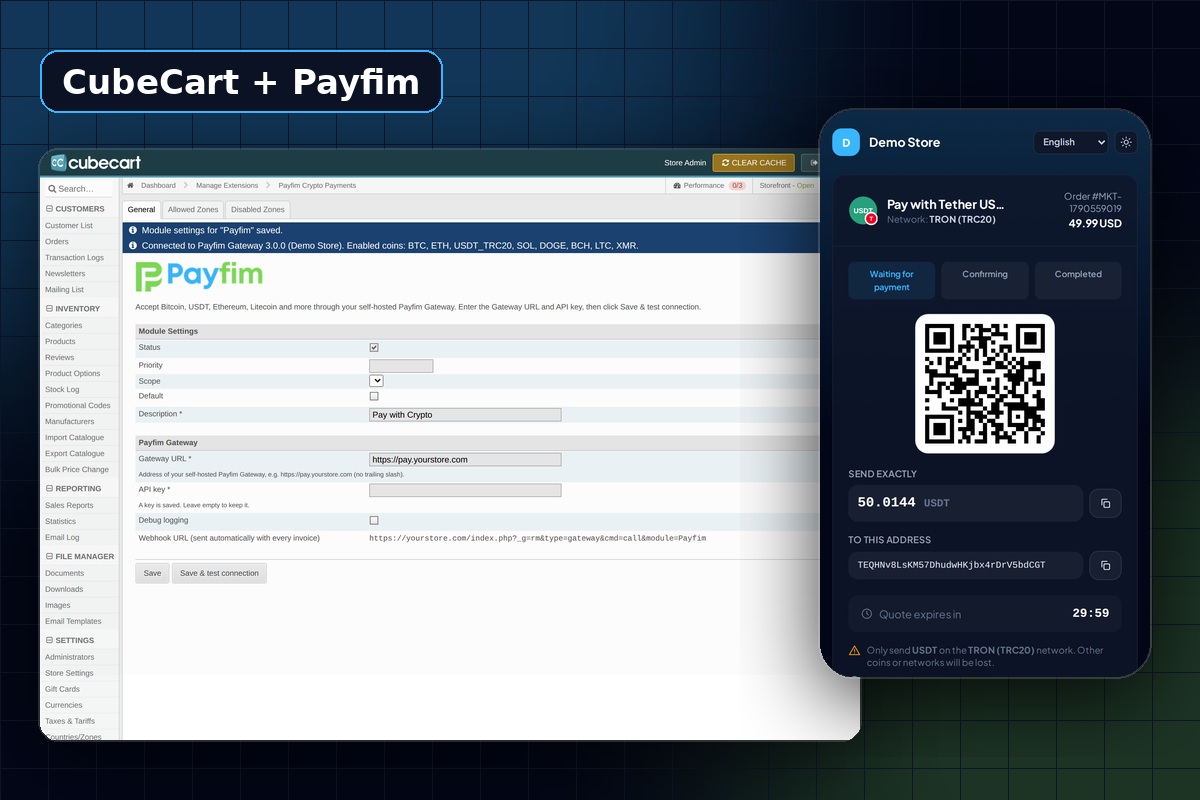
- Configure and test. Tick Status, keep or edit the checkout label, enter the Gateway URL and the API key from the gateway's Integrations page, and click Save & test connection. Use the zone tabs if you want to limit countries.
- Check an order. Place a small order and open it in Customers → Orders: the Transaction Logs tab should show the paid entry. More detail in the CubeCart setup guide.
Screenshots