
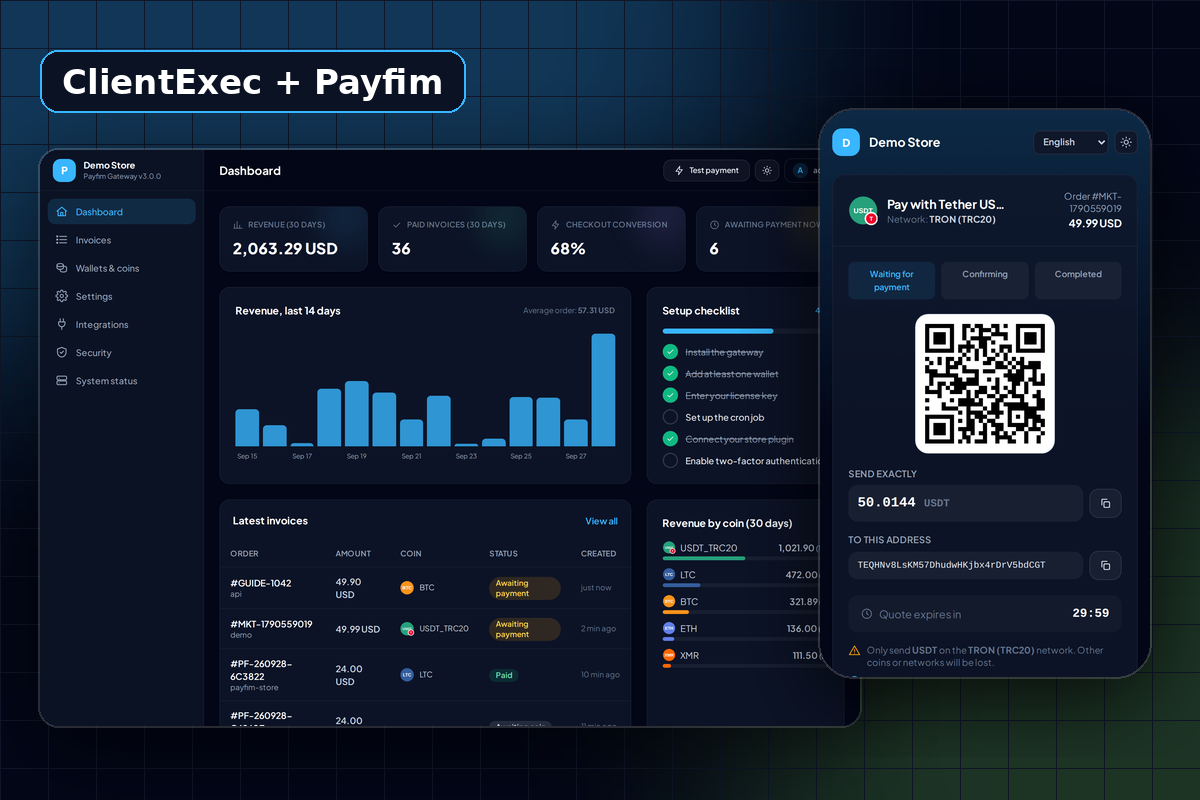
Win the clients who cannot pay by card
Many hosting providers see it in their order logs: a visitor configures a plan, reaches the payment step, and leaves. Sometimes the reason is simple - their card is declined for international purchases, or PayPal is not available where they live. Those visitors often already hold USDT or Bitcoin.
The Payfim plugin adds a Pay with Crypto payment processor to ClientExec that works at sign-up checkout, not only on invoices after the fact. A new client can order a hosting plan, pay in crypto and have the order go through the same way a card order does. Existing clients get the same option on every unpaid invoice.
Payments are handled by your own Payfim Gateway, a PHP application on your hosting. It sends clients to your branded checkout and pays nothing through a third party: the coins go directly to your wallet addresses.
What changes in ClientExec
Very little, which is the point. The plugin is a normal ClientExec payment processor and appears under Settings → Plugins → Payment Processors next to your other gateways. You get these settings:
- Gateway URL and API Key - the API key is a password field.
- Signup Name - the label clients see, Pay with Crypto by default. Change it to "Pay with Bitcoin or USDT" if that suits your audience better.
- Whether the processor is offered at sign-up, on invoices, or both. You can start with invoices only and add sign-up later, once you have seen a few payments go through.
If most of your clients hold dollar stablecoins, lead with USDT on TRON; its low network fee suits small monthly invoices. Bitcoin and Litecoin cover most other requests.
Coins, confirmations, exchange rates and checkout language are set in the Payfim gateway, so the ClientExec side stays small. When you later add Litecoin or Solana, you enable it in the gateway and ClientExec clients see it immediately.
What happens after the client pays
When a client chooses Pay with Crypto, the plugin creates a Payfim invoice on the server for the ClientExec invoice total and currency, then redirects the client to your checkout. Opening the payment again re-uses the same Payfim invoice.
After the payment reaches the confirmations you set - for example 1 for Bitcoin or solidified for USDT on TRON by default - your gateway calls plugins/gateways/payfim/callback.php with a signed webhook. The plugin then:
- checks the HMAC-SHA256 signature and rejects anything older than five minutes;
- re-reads the invoice from your gateway and checks it belongs to this ClientExec invoice;
- records the payment with the blockchain transaction hash as the transaction ID, which marks the invoice paid;
- returns the client to the ClientExec invoice page.
A repeated notification is recognized by its transaction hash and not recorded again. Because the invoice amount is created on the server, a client cannot lower the price by editing the payment page in their browser, and every notification is re-checked with your gateway before ClientExec is updated.
Underpayments go to Pending, not Paid
Clients sending from an exchange sometimes forget that the exchange deducts a withdrawal fee from the amount. The result is a payment a little short of the invoice.
Payfim allows a small tolerance (0.5% by default). Beyond that, the plugin sets the ClientExec invoice to Pending with the note "only X of Y received". The invoice is never marked paid on a short payment, and a repeat of the same notification does not add a second note. You then contact the client and ask for the balance, or refund from your wallet. See how to handle crypto underpayments and refunds.
Each open invoice is given a slightly unique amount (a tiny extra fraction, a few cents at most by default), which lets the gateway tell apart two clients paying the same plan price at the same time. The client sees the exact figure to send, so this does not add confusion.
Payments that are still confirming, and quotes that expire without payment, are only logged. That way clients who open the checkout and walk away do not receive payment-failed emails.
Checklist before you switch it on
A crypto payment option that fails on the first real order costs more trust than it earns, so run through this list before you announce it:
- Put the gateway on a subdomain you control, for example
pay.yourhost.com, with a valid HTTPS certificate. Clients see this address on the checkout. - Add wallet addresses you own. Avoid exchange deposit addresses. For Monero, the gateway needs your private view key or your own wallet RPC - never the spend key.
- Add free API keys where needed. Ethereum, USDT-ERC20, USDC and LINK need a free Etherscan key; a free TronGrid key is recommended for TRON and USDT-TRC20. Bitcoin, Litecoin, Dogecoin and several others need none.
- Set up the cron job to run every minute, as described in the cron guide.
- Pay a real test invoice with a low-fee coin such as Litecoin or USDT on TRON, and check that ClientExec marks it paid.
- Tell clients which networks you accept. USDT on TRON and USDT on Ethereum are different networks with different addresses; the checkout shows them as separate options to prevent mistakes.
Requirements
| ClientExec | 6.x |
|---|---|
| PHP | 7.4 - 8.4 (as supported by your ClientExec version) |
| Plugin path | plugins/gateways/payfim/ |
| Works at | Sign-up checkout and invoice payments |
| Gateway | Payfim Gateway 3.0+ (included in your download) |
| Network | HTTPS, ClientExec reachable from the gateway server |
How to install the ClientExec crypto payment plugin
- Install the Payfim gateway. Upload the gateway to your hosting, run the installer and add a wallet address for each coin - see installing the Payfim gateway.
- Upload the plugin. Unzip
payfim-clientexec.zipand upload the contents ofupload/to your ClientExec root. This createsplugins/gateways/payfim/. - Configure it. Go to Settings → Plugins → Payment Processors and select Payfim. Enter the Gateway URL and the API key from Payfim dashboard → Integrations, set the Signup Name, enable it for sign-up and invoice payments and save.
- Test. ClientExec payment processors have no test-connection button, so create a small invoice for a test client and pay it from the client portal. The ClientExec docs list common fixes.