A crypto payment method that follows HikaShop's rules
HikaShop gives you fine control over when a payment method appears: zones, currencies, price ranges and more. A crypto option that ignores those rules quickly becomes a support headache. The Payfim plugin is a native hikashoppayment plugin, so it appears in System → Payment methods next to your other methods and respects the restrictions you set there.
That makes a few setups easy that are awkward with hosted processors:
- Crypto above a minimum cart value only - set a price range restriction so small orders keep using cards.
- Crypto for selected zones - show the method only where it makes sense for your business.
- More than one crypto method - the plugin can be added several times, each with its own name, restrictions and gateway connection.
Behind the method sits your own self-hosted Payfim Gateway. Payfim charges no transaction fees, needs no merchant account, and never touches the coins: they go straight to the receiving addresses you entered in the gateway.
From Finish to confirmed: the order flow
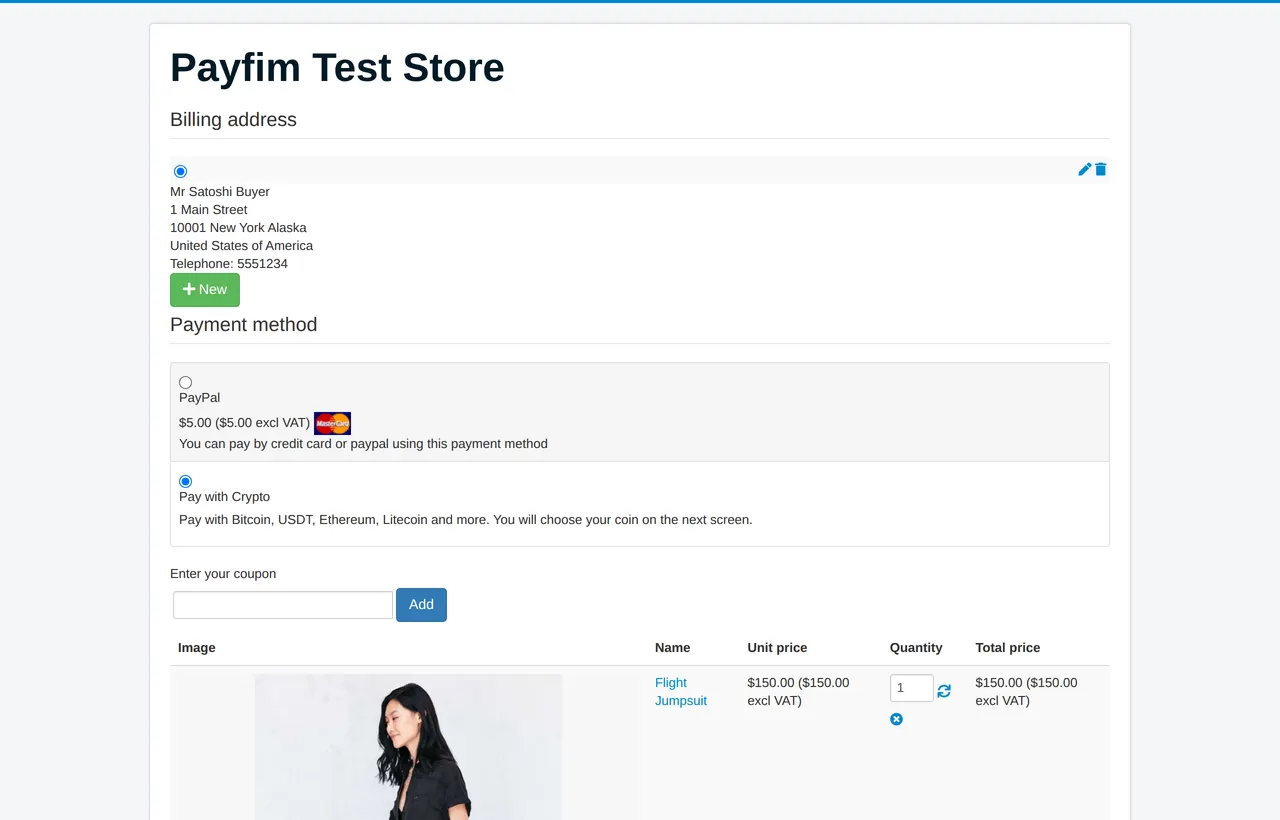
- The customer selects Pay with Crypto and clicks Finish. HikaShop creates the order with the status created, and the order history gets an entry with the Payfim invoice number.
- The plugin creates the invoice on your gateway, server to server, from the stored order total and currency, then redirects the customer to your branded checkout.
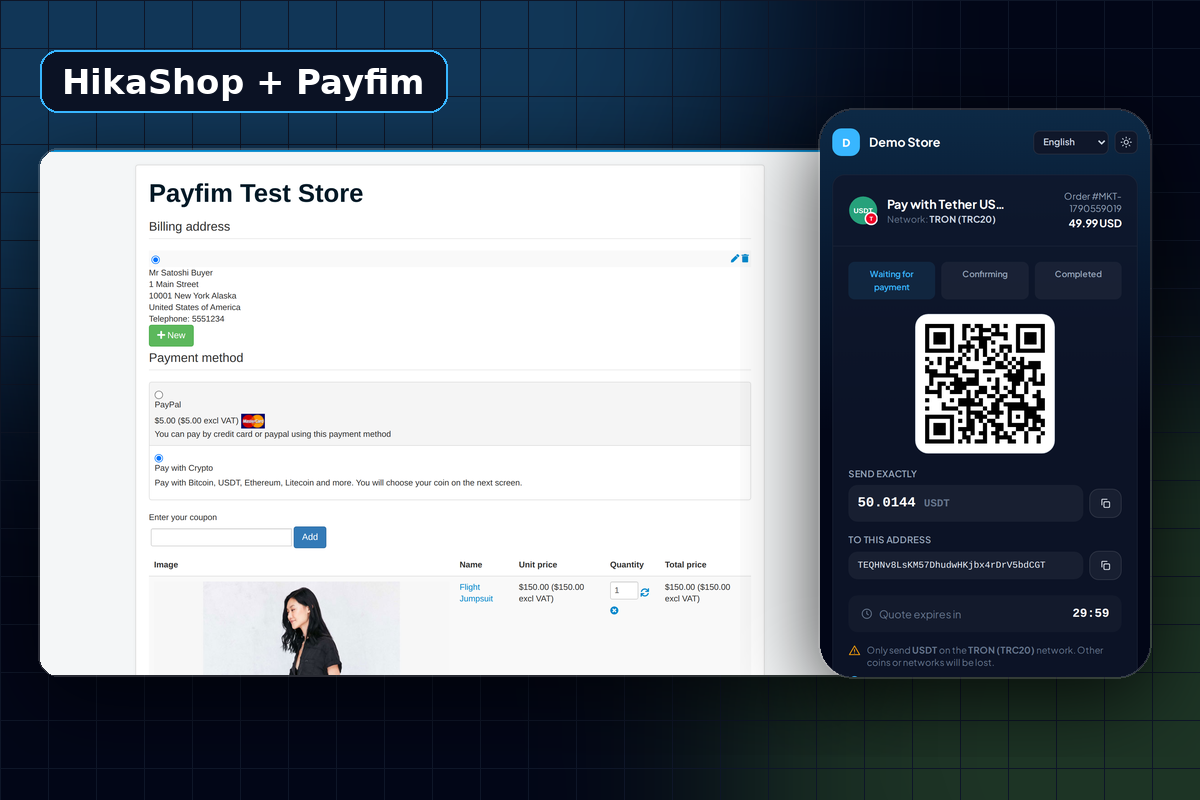
- The customer picks a coin, scans the QR code and pays. Quotes lock the exchange rate for 30 minutes by default.
- Once the transaction has the confirmations you set per coin, the gateway sends a signed webhook. The plugin re-reads the invoice from the gateway, checks it belongs to this order and payment method, and moves the order to confirmed.
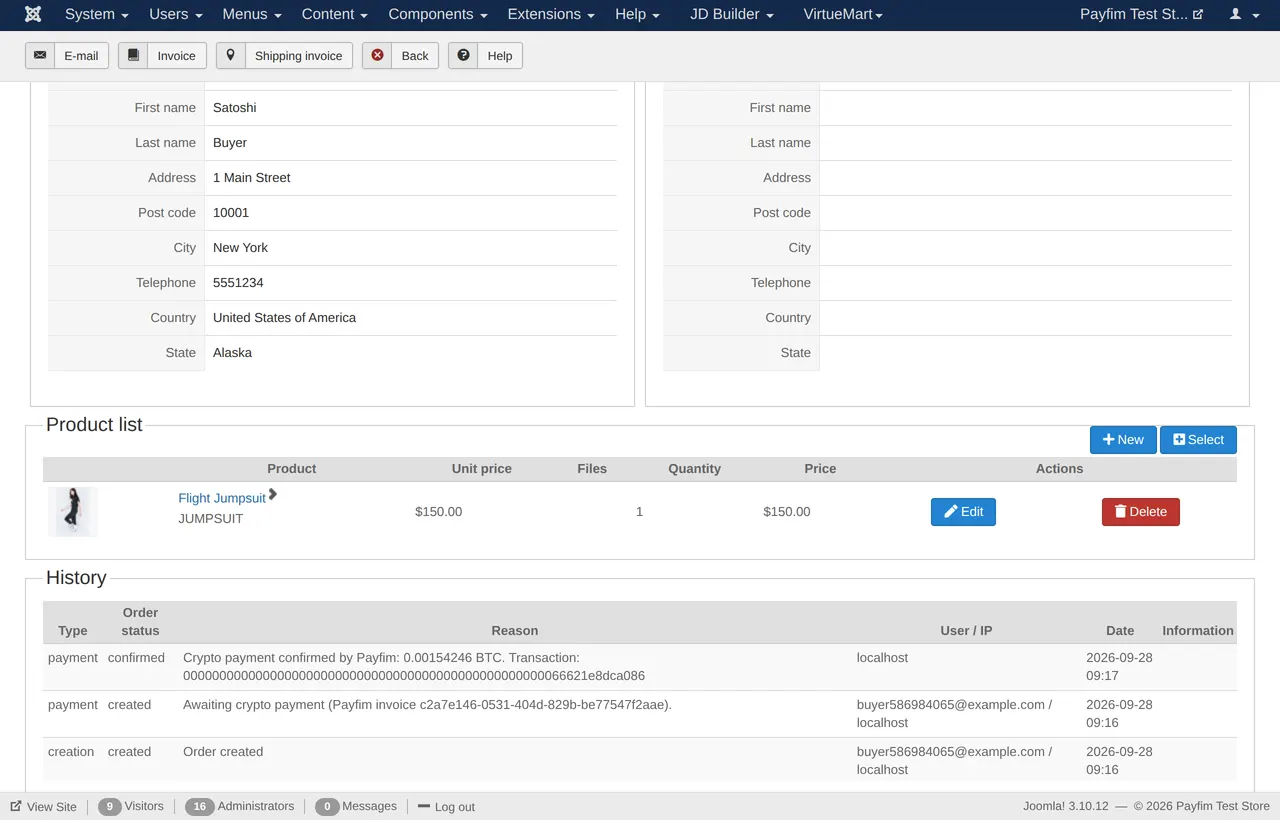
- HikaShop sends its normal status e-mail, and the order history shows the coin, the amount received and the transaction hash.
When the customer returns from the gateway, the plugin checks the invoice again before showing HikaShop's thank-you page, so the page reflects the real payment state. If a customer later opens the order in their account and clicks Pay now on an order whose payment has already arrived, the plugin shows a notice instead of issuing a second invoice.
Status mapping and the underpaid case
The plugin settings let you choose four HikaShop statuses. The defaults use statuses every HikaShop installation has:
| Payfim state | Default HikaShop status |
|---|---|
| Awaiting payment | created |
| Paid and confirmed | confirmed |
| Underpaid | created, with a history note |
| Expired or cancelled | cancelled (only while still awaiting payment) |
HikaShop has no "on hold" status out of the box. If you create your own review status, select it for underpaid orders so they are easy to filter. An underpaid invoice is never treated as paid; the history reads, for example, Only 0.0016 of 0.0021 BTC received, and you decide whether to request the rest or refund. Our article on crypto underpayments and refunds explains the usual approaches.
Security details for Joomla administrators
Each webhook is checked against an HMAC-SHA256 signature made with that payment method's API key and must be fresh (within five minutes). The plugin then asks your gateway for the invoice rather than trusting the message body, and it compares the invoice amount and currency with the current order total. Processing takes a per-order lock, so duplicate or simultaneous notifications change the order once.
The API key field is write-only: after saving it stays blank with the hint Saved - leave empty to keep the current key. The Test connection button runs through HikaShop's own plugin trigger and additionally checks the Joomla form token and core.manage permission. Gateway errors go to administrator/logs/payfim-hikashop.php; customers only see a short "temporarily unavailable" message. If the method is published but not configured, the plugin blocks the order instead of creating one that cannot be paid.
What your customers see after clicking Finish
The crypto checkout runs on your own domain, for example pay.yourstore.com, in your colors, with light and dark modes. It speaks English, Spanish, French, German, Portuguese and Turkish, so it suits the multilingual shops Joomla is often chosen for.
The customer sees the exact amount, a QR code and copy buttons. Each open invoice gets a unique amount, a tiny extra fraction of at most a few cents, so the gateway can tell payments apart even when they go to the same address. XRP payments get their own destination tag instead. The page updates on its own from "waiting" to "confirming" to "completed", and if the customer pays after the quote has expired, the gateway still detects the transaction so you can sort it out instead of losing track of it.
Requirements
| HikaShop | 4.3 - 5.x (tested end to end on HikaShop 4.3) |
|---|---|
| Joomla | 3.10, 4 or 5 (installation verified on Joomla 5) |
| PHP | 7.4 - 8.4 |
| Gateway | Payfim Gateway 3.0+ on HTTPS (included in your download) |
| Hosting | MySQL/MariaDB, cURL; shared hosting is fine |
Running VirtueMart on another Joomla site? The VirtueMart crypto payment plugin uses the same gateway, so one gateway can serve both shops.
Why self-hosted suits a Joomla shop
Joomla merchants tend to prefer software they install and own over services they rent, and Payfim follows the same idea. You pay a one-time license per domain, the gateway runs on your hosting, and a payfim.com outage never blocks your checkout: the license check has a 72-hour grace period and is signed with Ed25519. For a side-by-side look at the trade-offs, read self-hosted vs hosted crypto payment gateways.
Twelve months of updates are included with the license, renewal after that is optional, and if the plugin does not work on your shop and support cannot fix it, the 14-day refund policy applies.
How to install the HikaShop crypto payment plugin
- Install your Payfim gateway. Put the gateway on your hosting (for example
pay.yourstore.com), run its installer and add your wallet addresses. Details: Install the Payfim gateway. - Upload the plugin. In Joomla go to System → Install → Extensions (Joomla 3: Extensions → Manage → Install) and upload
plg_hikashoppayment_payfim.zip. Joomla enables it automatically. - Add the payment method. Open Components → HikaShop → System → Payment methods, click New and choose Hikashop Payfim Crypto Payments Plugin. Name and description are pre-filled; set Published to Yes.
- Connect your gateway. Under Specific configuration paste the Gateway URL and the API key from the gateway's Integrations page, click Test connection, check the status mapping and click Save & Close.
- Run a test order. Buy a low-priced item, pay it, and confirm the order reaches confirmed with the transaction hash in its history. See the HikaShop setup guide for screenshots.
Screenshots