
The Payfim gateway adds Pay with Crypto to your CubeCart checkout. CubeCart creates the order, Payfim creates the invoice on your own gateway and the order is set to Processing automatically as soon as the payment is confirmed on the blockchain.
Before you start, install your Payfim Gateway and add your wallets (see Install the gateway and Add wallets). Compatibility: CubeCart 6.x · PHP 7.4 – 8.4.
- Upload the gateway folder.
Unzip
payfim-cubecart.zipand upload themodulesfolder to your CubeCart root folder (whereindex.phpis). This createsmodules/gateway/Payfim/; no existing file is changed. - Open Manage Extensions.
In the admin go to Extensions > Manage Extensions. Payfim Crypto Payments is listed under Payment. Click the blue gear button to open its settings.
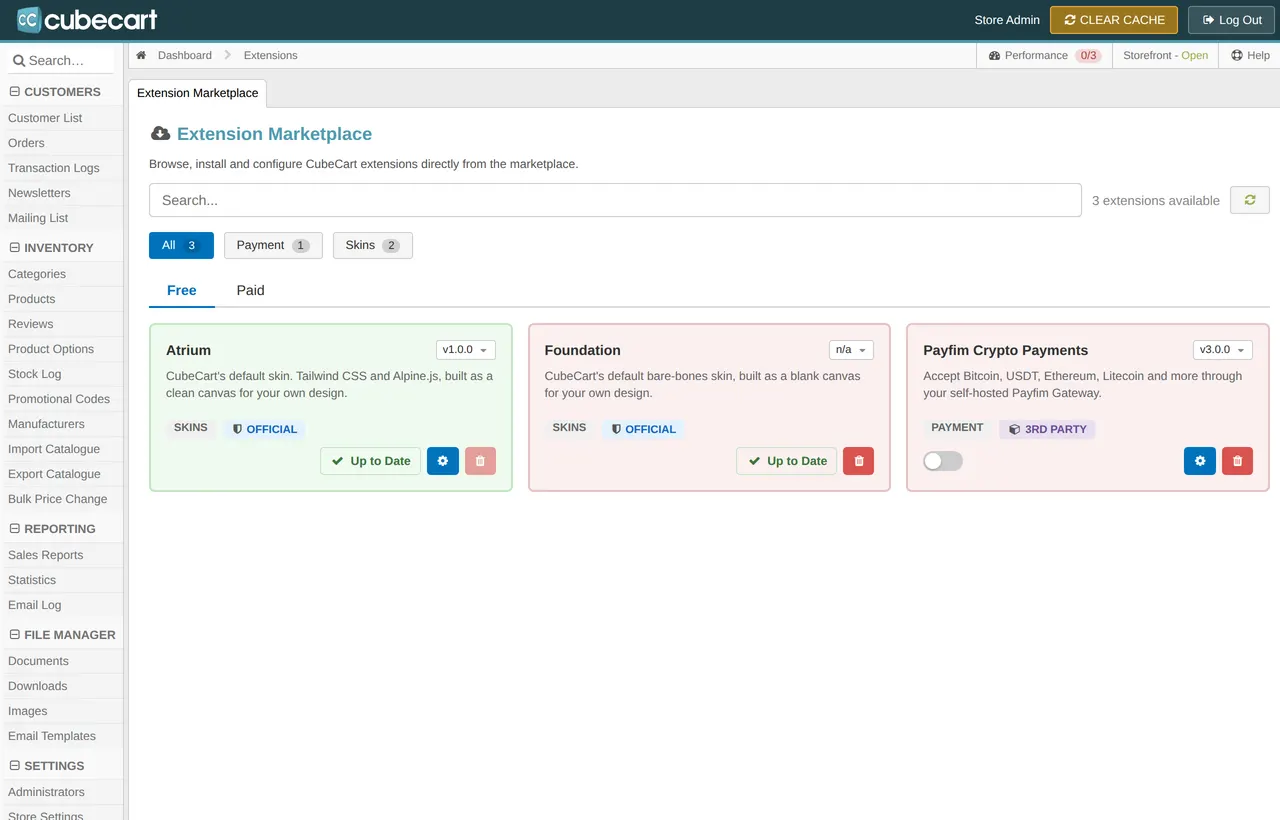
Extensions > Manage Extensions - Configure and test.
Tick Status, keep the Description (what customers see, default Pay with Crypto), enter your Gateway URL (e.g.
https://pay.yourstore.com) and the API key from your gateway admin (Integrations). Click Save & test connection: a message confirms the gateway version and your coins.
Payfim settings after a successful connection test Tip: The API key field always stays empty after saving - leave it empty to keep the saved key. Use the Allowed Zones / Disabled Zones tabs to limit countries.
- What your customers see.
At checkout customers choose Pay with Crypto (it is selected automatically when it is your only gateway), are sent to your gateway to pick a coin and pay, and return to the order confirmation page when the payment is confirmed.

Order complete after a crypto payment - Check paid orders.
Open the order in Customers > Orders. The Transaction Logs tab shows the payment (status paid, amount, and the blockchain transaction hash in the notes) and the Notes tab the Payfim invoice. Underpaid and expired payments are logged there too.
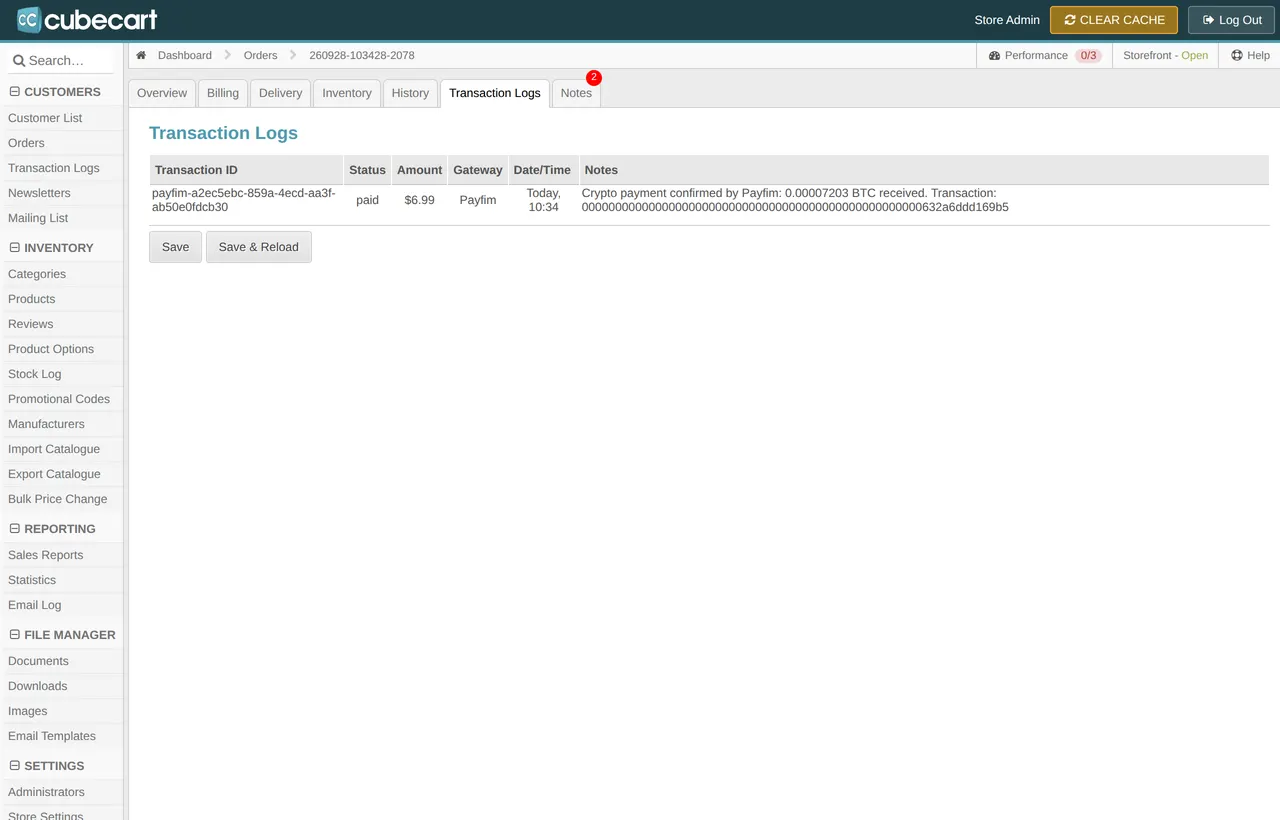
Order > Transaction Logs Tip: Underpaid orders stay Pending with a note "Only X of Y received" - they are never marked paid. Expired quotes cancel the unpaid order.
Troubleshooting
- Payfim is not offered at checkout
- Make sure Status is ticked and the Allowed/Disabled Zones do not exclude the customer's country.
- "Crypto payment is temporarily unavailable" on the payment page
- The store could not reach the gateway. Click Save & test connection and check the Gateway URL, the API key and outgoing HTTPS on your server. The customer can retry with Make Payment.
- Order stays Pending after paying
- The gateway could not deliver the webhook to
index.php?_g=rm&type=gateway&cmd=call&module=Payfim(shown in the settings). Check the webhook log on the invoice in your gateway admin. - The paid amount differs from the shown price
- CubeCart charges in the store's default currency. In Settings > Currencies the default currency must have the value 1.0.
- Need details
- Tick Debug logging; entries are written to
backup/payfim-YYYYMM.logand errors to the PHP error log.
Get the CubeCart Crypto Payment Gateway - the download includes an illustrated PDF version of this guide.