
The Payfim plugin adds Donate with Crypto to your GiveWP donation forms - both visual builder forms and option-based forms. GiveWP records the donation as Pending, the donor pays on your own Payfim Gateway, and the donation is marked Complete automatically - receipt e-mail included - once the payment is confirmed on the blockchain.
Before you start, install your Payfim Gateway and add your wallets (see Install the gateway and Add wallets). Compatibility: GiveWP 3.x – 4.x · WordPress 6.0+ · PHP 7.4 – 8.4.
- Upload the plugin.
In WordPress open Plugins > Add New Plugin and click Upload Plugin. Choose
payfim-givewp.zip, click Install Now and then Activate Plugin. GiveWP 3.0 or newer must be active.
Plugins > Add New Plugin > Upload Plugin - Connect it to your gateway.
Go to GiveWP > Settings > Payment Gateways (on GiveWP 3.x the menu is called Donations, so Donations > Settings > Payment Gateways) and open Payfim Crypto. Enter your Gateway URL (for example
https://pay.yourcharity.org) and the API key from your gateway admin (Integrations), click Save changes, then Test connection. A green message lists the coins your gateway accepts.
Payment Gateways > Payfim Crypto with a successful connection test Tip: Keep the API key private - it creates invoices and signs every payment notification.
- Enable it for your forms.
Open Payment Gateways > Gateways. Tick Enabled for Payfim Crypto Donations on the Visual Form Builder tab and, if you use older forms, on the Option-Based Form Editor tab too. The Label column lets you rename it per form type. Click Save changes.

Enabled Gateways: Payfim Crypto Donations switched on - Check a donation form.
Open any donation form: donors now see Donate with Crypto in the payment step. When they click Donate now they are redirected to your gateway to choose a coin and pay, and come back to the GiveWP receipt afterwards.
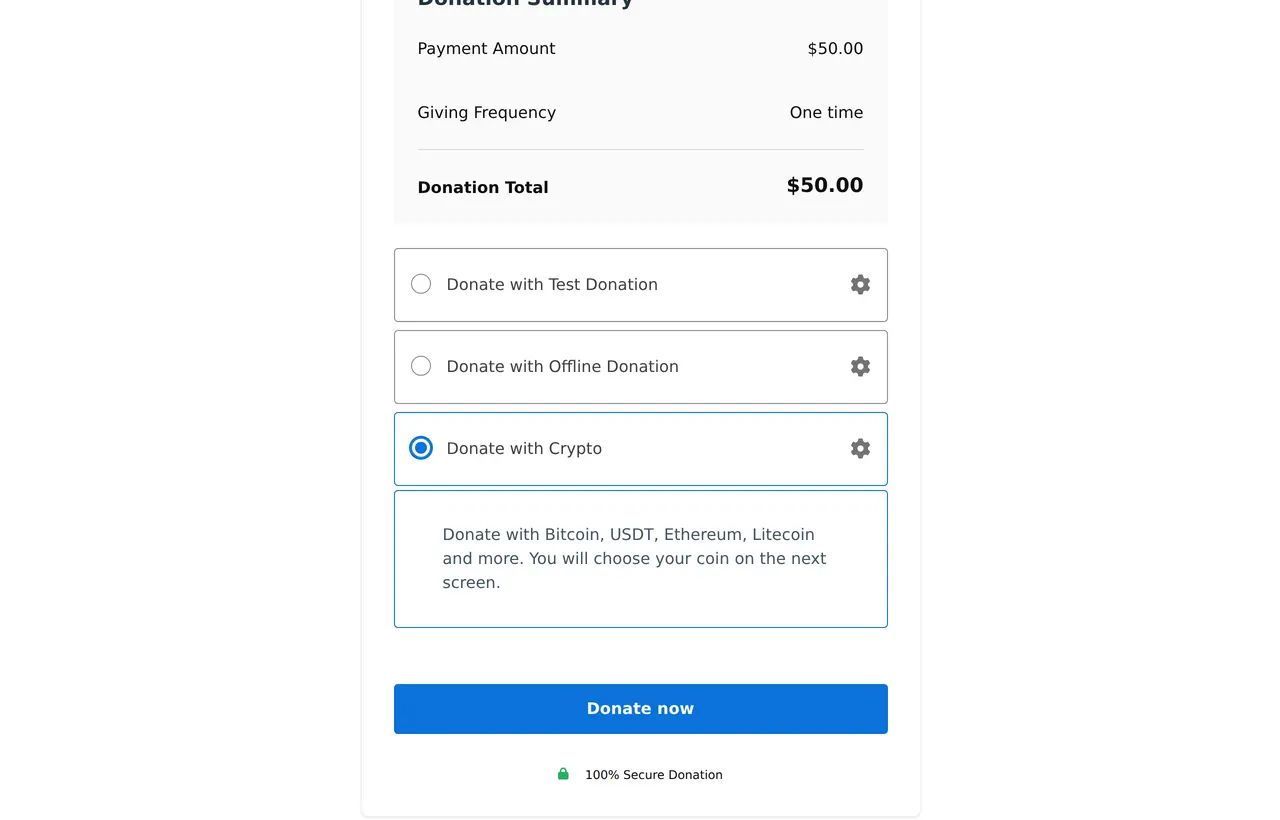
A visual builder form with Donate with Crypto selected - After the donation.
Once the payment is confirmed the donation becomes Complete, the donor receives the receipt, and GiveWP > Donations (open the donation) shows the blockchain transaction hash as Transaction ID plus notes with the invoice, coin and amount received. While the network confirms, the donation is Processing.
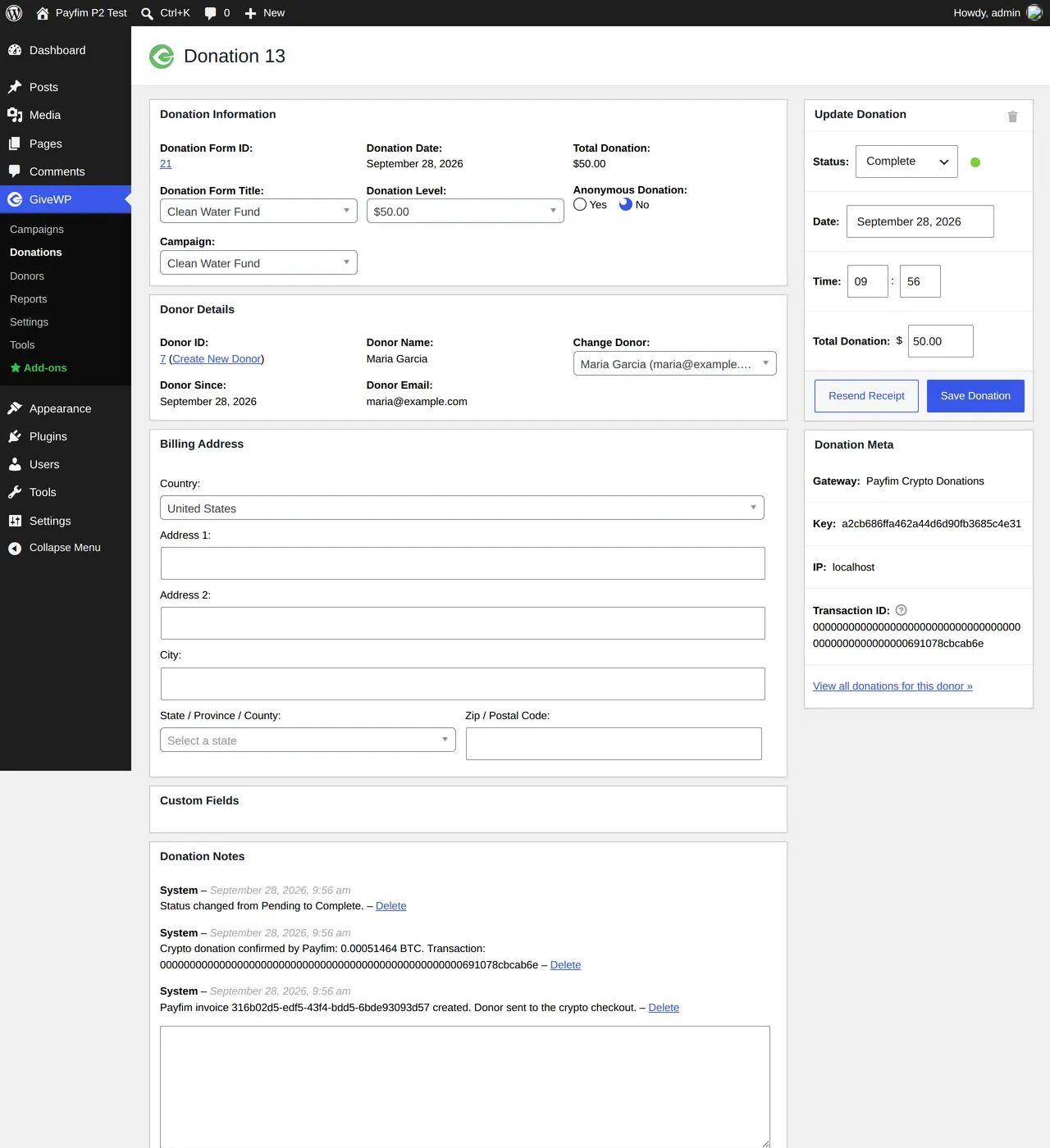
Donation details: Complete, transaction ID and Payfim notes Tip: If a donor sends less than requested, the donation is never completed: it stays Pending for review (or Failed, see settings) with a note "only X of Y BTC received". Cancelled or expired quotes mark the donation Cancelled / Abandoned.
Troubleshooting
- Donate with Crypto is not on the form
- Check Payment Gateways > Gateways: Payfim Crypto Donations must be enabled on the tab that matches your form type (Visual Form Builder or Option-Based Form Editor).
- "Crypto payment is temporarily unavailable"
- The site could not reach the gateway. Click Test connection; check the Gateway URL, the API key and that your host allows outgoing HTTPS. Errors are logged in GiveWP > Tools > Logs.
- Donation stays Pending after paying
- The gateway could not deliver the webhook to
/wp-json/payfim-givewp/v1/webhook. Check the invoice's webhook log in the gateway admin; security plugins or firewalls must allow POST requests to the WordPress REST API. - Need details
- Enable Debug log in the Payfim Crypto settings; entries start with
Payfim:in GiveWP > Tools > Logs.
Get the GiveWP Crypto Donations Gateway - the download includes an illustrated PDF version of this guide.